
MuseHub and MuseScore Account: Are They the Same?
If MuseHub asks you to sign in again, a product is missing, or an older MuseScore login no longer shows the content you expected, the problem is often an account boundary rather than a broken installer. MuseHub manages products, content, purchases, devices, and authorization in its own product environment. MuseScore Studio remains a separate application, and its basic download does not require a MuseHub account.
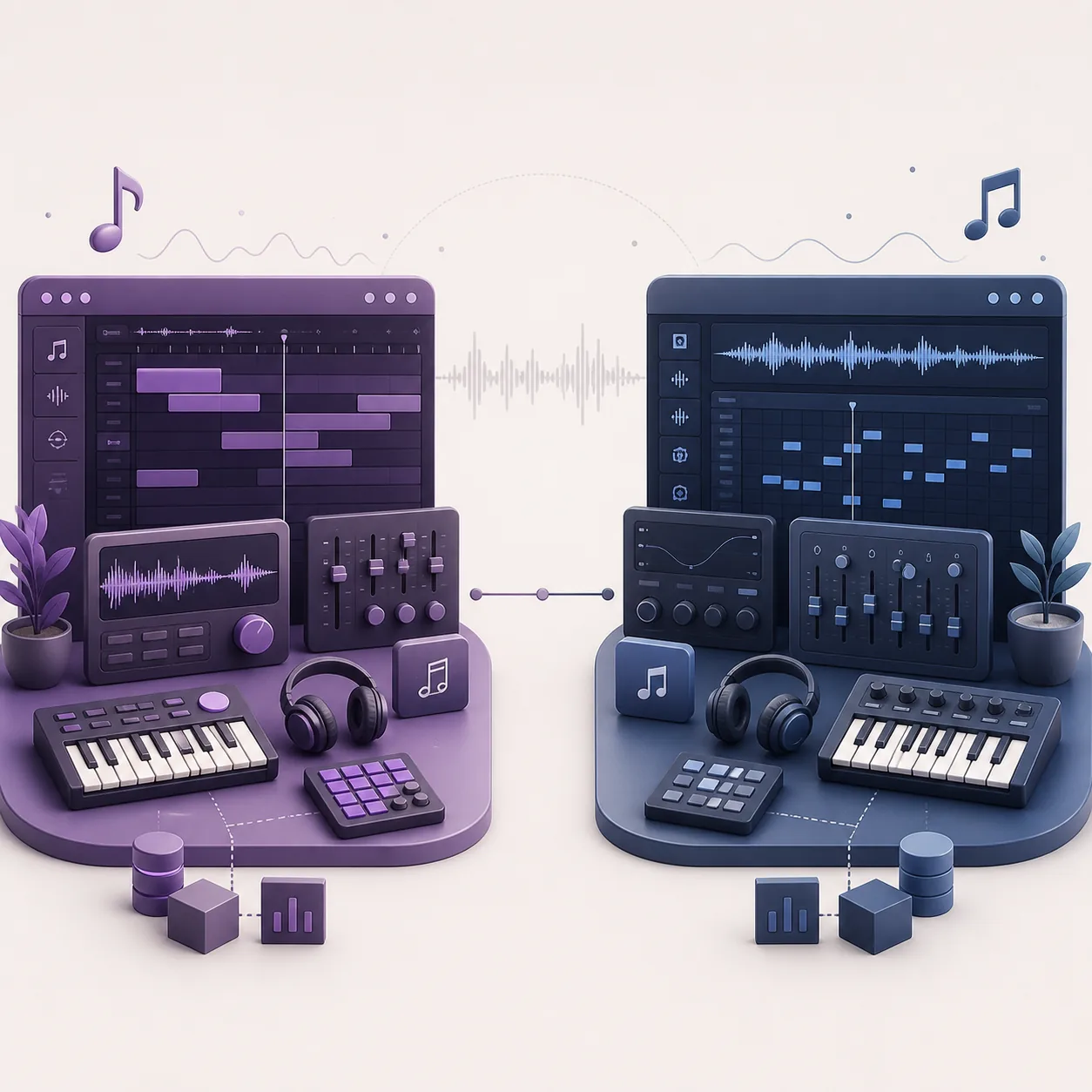
Treat MuseHub and MuseScore as separate product contexts even when you reuse the same email address. A MuseHub account is relevant to MuseHub catalog products, purchases, device authorization, and managed content. You can download and use MuseScore Studio without a MuseHub account, but MuseSounds and other managed products may still need the correct MuseHub sign-in and authorization state. If something is missing, check the account, product, device, and platform before reinstalling.
Quick facts
| MuseHub account | Catalog products, purchases, device authorization, and managed content |
|---|---|
| MuseScore Studio download | Can be obtained without a MuseHub account |
| Same email address | May be reused, but does not prove that products or authorizations are shared |
| Missing product | Check account, product, device, content location, and current app version |
| Linux boundary | MuseSounds Manager is the Linux path for MuseSounds, not the full Windows/macOS marketplace app |
What does a MuseHub account control?
A MuseHub account is more than a download permission. It gives the MuseHub product environment a way to associate catalog items, purchases, trials, free registrations, device authorizations, and managed content with a person or organization. That is why a product can be installed correctly and still fail to appear in Library: the installer is present, but the current session is not the account or device context that owns the item.
The official MuseHub FAQ distinguishes products that can be downloaded without an account from products that generally require free registration. MuseScore Studio and Audacity are the important no-account download exceptions. A commercial plugin, a registered free product, a trial, a subscription item, or a content library can have a different account requirement and authorization path.
Do not use a cracked installer, an account shared by someone else, or an old download directory to work around a missing product. Those shortcuts make it harder to tell whether the problem is a product license, an account mismatch, a device limit, a damaged local cache, or an unsupported application version. Start with the official account and authorization state, then use the MuseHub troubleshooting guide for the smallest relevant repair.
- Catalog visibility: which products the current account can browse or install.
- Ownership and purchases: which paid or registered items belong to the account.
- Device authorization: whether this computer is allowed to use the product.
- Managed content: whether MuseSounds, loops, or product updates can be retrieved.
MuseHub, MuseScore Studio, and MuseScore.com have different roles
The names are close enough to create a misleading expectation: one login should unlock everything everywhere. In practice, MuseHub is the catalog and content-management environment, MuseScore Studio is the notation application, and MuseScore.com is a separate web and community context. A MuseHub account can matter to MuseSounds or other managed products without being the same thing as an application installation or a community profile.
This also explains why the answer to “Do I need a MuseHub account for MuseScore?” depends on the task. If the task is only downloading or opening MuseScore Studio, the official download route can work without a MuseHub account. If the task is installing MuseSounds, retrieving a registered product, or authorizing a managed library, MuseHub account state becomes relevant. See MuseHub vs MuseScore for the broader product comparison.
| User goal | Main environment | MuseHub account question |
|---|---|---|
| Download MuseScore Studio | MuseScore official download | Usually not required |
| Write and play notation | MuseScore Studio | Not required for the basic app; required content can differ |
| Install MuseSounds | MuseHub or MuseSounds Manager | Use the account that owns or registers the library |
| Install a MuseHub plugin | MuseHub catalog plus a compatible host | Check the product, license, and device authorization |
| View a web profile or community item | MuseScore.com | Do not assume web profile state equals MuseHub Library state |
The same email does not prove the same authorization
Reusing an email address is sensible because it makes account recovery easier, but an email string is not a reliable test for product ownership. A service may use different account records, product catalogs, purchase histories, or authorization services behind related brand names. The practical rule is simple: sign in through the product environment that owns the item, then confirm that the expected product, purchase, or device appears there.
If you moved from an older MuseScore login, do not immediately create several new accounts or buy the same product again. First record the email or sign-in method you used, open the MuseHub account area, check Library and device authorization, and look for an official account-recovery route. If a purchase receipt or registration message exists, keep it available for support rather than posting it publicly.
The diagram below is an explanatory workflow, not a screenshot. It shows the order that reduces confusion: identify the sign-in, confirm the product context, check the item, and only then investigate a device or installer problem.
- 1Identify the sign-in
Write down the email, sign-in provider, and whether you used a different address for a purchase or registration.
- 2Open the right product context
Check MuseHub Library or the relevant MuseScore web area instead of assuming that one page represents every account record.
- 3Compare the expected item
Look for the product, trial, purchase, or MuseSounds library before reinstalling the application.
- 4Escalate with evidence
If the item is still absent, contact official support with the product name, platform, account state, and a redacted receipt reference.

What to check when a MuseHub product is missing
A missing product is not automatically a download failure. If the app opens but Library is incomplete, compare the account first. If the product is visible but Install is unavailable, check the platform, product compatibility, license or trial state, and device authorization. If the product installs but MuseScore cannot see the library, move to content location, permissions, app restart, and playback-profile checks.
Use one installation route at a time. Switching between an official MuseHub-managed product, a direct developer installer, and a third-party mirror can create duplicate files, different update paths, or a product that is installed under a different account context. The MuseHub installation guide explains the official Windows and macOS route, while MuseHub for MuseScore covers MuseSounds locations and missing-library checks.
For a repeat sign-in prompt, update the application before deleting content. The current official authorization procedure names minimum support baselines of Windows 2.8.0+, macOS 3.1.1+, and MuseSounds Manager Linux 2.2.0+. Those are support minimums, not a claim that they are the newest releases. Use the current first-party download destination and record the installed version before making a larger change.
- Account: confirm the current email and sign-in method.
- Product: confirm the exact product name, edition, trial, or purchase state.
- Device: confirm that the current computer is authorized and online when required.
- Content: confirm storage location, free disk space, permissions, and connected external drives.
- Version: compare the installed app with the official support minimum before reinstalling.
Why device authorization can look like an account problem
Products that require authorization may be visible in the correct account but unavailable on the current computer. A device registration can be affected by an operating-system change, a restored disk image, a hardware replacement, an offline state, a stale app session, or a product that has reached its allowed device count. In that situation, reinstalling the app without checking the device state can repeat the same failure.
The official authorization guidance recommends a practical sequence: close dependent applications, launch the current MuseHub or MuseSounds Manager, confirm the account, check the registered device, restart when prompted, and reinstall only the affected product if the account and device are correct. Keep passwords, payment details, and full license keys private when contacting support.
The illustration represents content, a device, storage, synchronization, and a security boundary as separate pieces. That separation is the useful diagnostic idea: a product tile, a local file, and a valid authorization are related, but they are not interchangeable evidence.

When to contact official support
Contact official support when the correct account still cannot display a purchase or registered product, a device remains unauthorized after a clean restart, a legitimate receipt cannot be matched, or the product is missing after the current first-party recovery steps. Explain the smallest reproducible problem instead of sending a long list of unrelated reinstall attempts.
Include your operating system, MuseHub or MuseSounds Manager version, product name, whether the product is free, a trial, or purchased, the account state, the exact error text, and what you already tried. Redact passwords, payment numbers, full license keys, private download tokens, and personal documents. If the problem began after a migration, say which computer or disk changed.
For ordinary installation questions, start with the official-source links on the MuseHub download page. For updates, use the MuseHub update guide; for a damaged app or repeated authorization loop, use MuseHub troubleshooting before removing libraries.
Bottom line
MuseHub and MuseScore are related products, but you should not assume that a shared brand name, a shared email address, or a successful application download means that accounts and authorizations are shared. Use MuseScore Studio directly for the basic notation application, and use the correct MuseHub or MuseSounds Manager account when a managed product, library, purchase, or device authorization is involved.
If something is missing, check account, product, device, content location, and version in that order. That sequence is safer than downloading an unverified installer or creating duplicate accounts, and it gives official support the information needed to resolve the actual boundary.
MuseHub account FAQ
Are MuseHub and MuseScore accounts the same?
Treat them as separate product contexts. You may reuse the same email, but product visibility, purchases, device authorization, and managed content still need to be checked in the correct MuseHub environment.
Do I need a MuseHub account to download MuseScore Studio?
No. MuseScore Studio can be downloaded without a MuseHub account. MuseSounds and other managed products can have separate account or authorization requirements.
Can I use my old MuseScore email for MuseHub?
You can try the same email, but do not assume it proves that a purchase or product authorization has moved. Check the MuseHub Library and contact official support if an expected item is missing.
Why is my MuseHub product not showing?
Common causes include the wrong account, an unregistered free product, a different purchase identity, device authorization, an offline session, or a stale app version. Check those boundaries before reinstalling.
Why does MuseHub keep asking me to sign in?
Confirm the app is current, check the network and system time, close dependent products, restart MuseHub, and verify the registered device. If the loop continues, use the official authorization procedure rather than trying an unknown installer.
Do MuseSounds use a MuseHub account?
On Windows and macOS, MuseHub manages MuseSounds and the associated product state. Linux uses MuseSounds Manager. The library, account, device, and content location must all be compatible.
Should I create a second account if a product is missing?
Usually no. First confirm the original email, sign-in method, purchase or registration evidence, Library state, and device authorization. A second account can make ownership and support recovery harder to trace.
Is the Linux MuseSounds Manager the full MuseHub marketplace?
No. MuseSounds Manager is the Linux route for MuseSounds and is not the same as the full Windows/macOS MuseHub marketplace application. Check the Linux-specific guide for package and compatibility details.
Official sources checked
Account boundaries and authorization wording were checked on August 7, 2026. Download file targets were also rechecked on the same date; this guide does not claim an unpublished cross-platform version number.
- MuseHub frequently asked questions - Account requirements, products, MuseScore Studio, Audacity, and managed content.
- What is MuseHub? - MuseHub catalog, product management, and account context.
- MuseHub authorisation issues - Account, device, restart, and minimum support-version procedure.
- MuseHub download links per operating system - First-party Windows and macOS destinations; no stable public cross-platform version number.
- MuseSounds Manager changelog - Linux Manager release history and current published version boundary.