
MuseFX: What It Is, How to Install It, and Use It in Audacity
MuseFX is a free collection of audio effects that can be installed through MuseHub and used in a compatible host such as Audacity. This guide explains what MuseFX does, how the official installation route works, which formats matter, how to scan and enable the effects, and how to troubleshoot a plugin that does not appear.
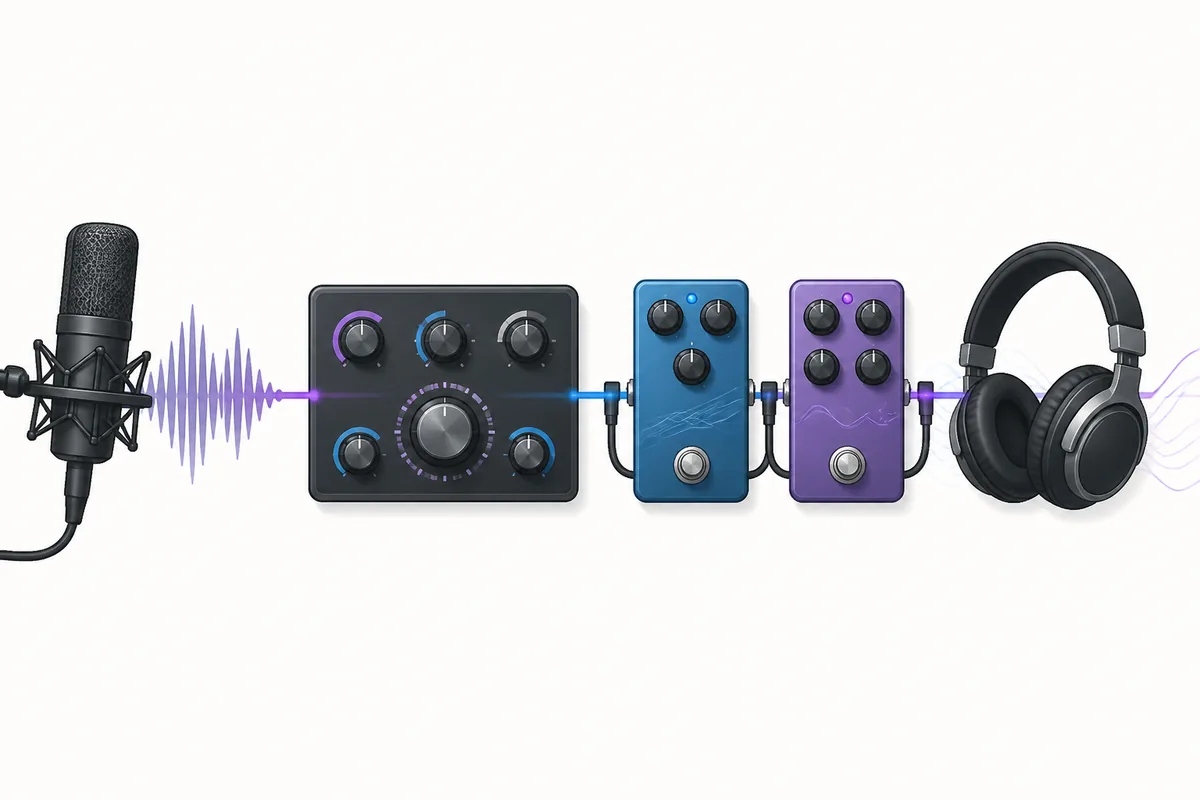
MuseFX is a free Muse audio-effects suite. Install it from the official MuseHub catalog, finish the download, restart Audacity, then open its plugin manager and rescan supported effects. MuseFX is an effect collection for a compatible host; it is not MuseSounds, MuseScore Studio, or a requirement for using Audacity.
MuseFX at a glance
| What it is | A free collection of audio effects distributed through MuseHub |
|---|---|
| Best beginner host | Audacity, when the supplied plugin format and 64-bit architecture match |
| Typical effects | EQ, compression, reverb, delay, distortion, and utility processors |
| Install route | Official MuseHub product listing; do not use random DLL or cracked bundles |
| Version status | No stable public version number was verified on August 11, 2026; use the current official listing |
What is MuseFX?
MuseFX is a group of audio effects from the Muse ecosystem. The official MuseHub Audacity tutorial presents it as a useful free pack for getting started with plugin-based effects. The practical idea is simple: MuseHub delivers the product, while a host such as Audacity loads the effect and gives you controls for processing a track.
The word MuseFX should not be confused with MuseSounds or MuseScore Studio. MuseSounds are playback libraries intended for MuseScore Studio, while MuseFX is an effects collection. Audacity is a separate audio editor. You may install Audacity independently and use MuseFX only when the supplied format, operating-system support, and 64-bit architecture are compatible.
| Product or term | Role | What to remember |
|---|---|---|
| MuseFX | Audio effects | Use it in a compatible host such as Audacity |
| MuseHub | Catalog and installer | Downloads, installs, activates, and updates supported products |
| MuseSounds | Playback content | Designed mainly for MuseScore Studio sound profiles |
| Audacity | Audio editor and host | Scans and loads compatible plugins after installation |
How to download and install MuseFX
For a software download, the safest path is the official MuseHub product listing followed by installation inside MuseHub. This page does not invent a stable MuseFX file URL, installer filename, file size, or latest version number. The product page was not reliably readable during the August 11, 2026 check, so use the official listing and the current catalog state rather than an old third-party version label.
MuseFX is normally treated as a plugin product, not as a standalone application that you launch from the Windows Start menu or macOS Applications folder. If the catalog shows a format or operating-system limitation, follow that product information. Do not download loose DLL files from forums, repackaged archives, or crack sites.
- 1Open the official product route
Use the MuseFX listing on MuseHub or the official MuseHub tutorial that links to the workflow.
- 2Check host compatibility
Confirm your Audacity build, operating system, architecture, and the format supplied by the product.
- 3Finish installation in MuseHub
Let the download, file copy, and any authorization step finish before opening Audacity.
- 4Restart the host
Close Audacity completely and reopen it so a fresh plugin scan can detect the new effect.
Use MuseFX in Audacity: scan, enable, and add an effect
MuseHub installing a product and Audacity detecting it are two different events. After MuseHub reports that the installation is complete, restart Audacity. If the effect is still missing, open Audacity's plugin-management command, run a rescan, search for MuseFX or an individual processor name, and enable entries that are disabled. The exact menu wording can vary between Audacity releases.
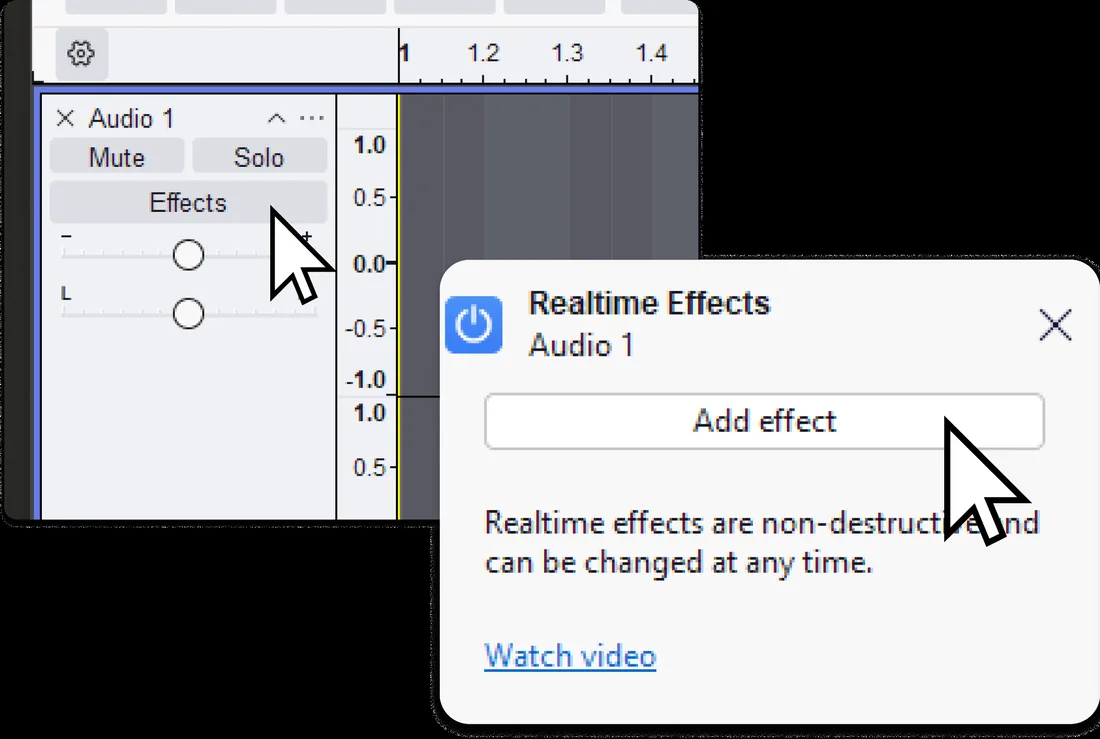
Once an effect is visible, use a short test clip before opening an important project. In Audacity, open the track's Effects control, choose Add effect, select a MuseFX processor, and compare the processed sound with bypass at a similar loudness. Realtime effects are useful for learning because you can change or remove them without permanently rewriting the original audio.
- 1Restart Audacity
A host restart often makes a newly installed effect visible.
- 2Run the plugin scan
Use the plugin manager or effect-rescan command in your Audacity release.
- 3Search and enable
Look for MuseFX and its individual effect names, then enable disabled entries.
- 4Add the processor
Open Effects on a test track, choose Add effect, and select the effect you want.
What can you do with MuseFX?
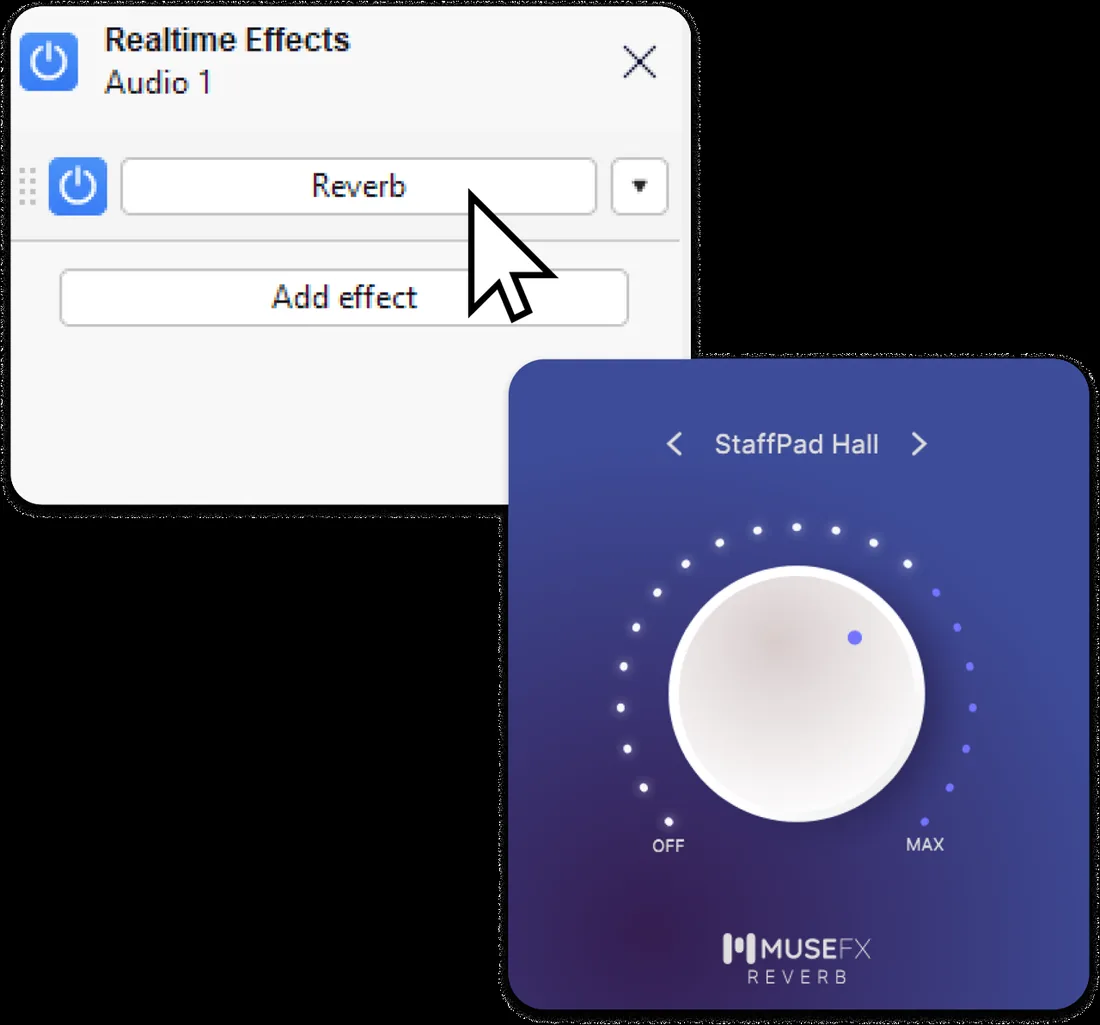
The useful starting point is not to install every processor at once. Begin with one effect and learn what it changes. Corrective EQ can reduce an unwanted frequency, compression can narrow level differences, reverb can add a sense of space, delay can create repeats, and distortion can add harmonic color. These are use cases, not promises that every MuseFX product has identical controls or presets.
For a first test, use a short voice or instrument clip. Try a small EQ adjustment, add light compression, then compare a modest reverb setting with bypass. Watch for clipping and avoid judging an effect only because it sounds louder. Save the project before experimenting and export a separate file when you are ready to keep the result.
| Effect type | Good first experiment | Common mistake |
|---|---|---|
| EQ | Make one small cut or boost and compare bypass | Boosting everything until the track is simply louder |
| Compression | Use a spoken phrase or steady instrument part | Using heavy compression before checking the original dynamics |
| Reverb | Add a little space to a dry clip | Adding so much reverb that words or attacks become unclear |
| Delay | Test a short repeat on an isolated phrase | Ignoring tempo, feedback, or a buildup of repeats |
| Distortion | Blend a small amount on a duplicate track | Processing the only copy of an important recording |
Fix MuseFX when it does not appear
A missing MuseFX entry usually points to one of four boundaries: the MuseHub installation did not finish, the product format is not supported by the host, the plugin is disabled, or the host and plugin architectures do not match. Check those boundaries in that order. Repeatedly rescanning a product that never installed a compatible component will not solve the problem.
If Audacity crashes during scanning, remove or disable the most recently installed effect and add products back one at a time. If one processor appears but another does not, search for the individual processor name and check its enabled state. Do not replace missing components with random files from an unofficial archive.
| Symptom | Likely cause | Best next check |
|---|---|---|
| MuseFX is absent | Incomplete install or unsupported format | Review the MuseHub product details and reinstall through the official route |
| It is listed but disabled | Audacity has not enabled the entry | Enable it in the plugin manager and restart Audacity |
| The effect opens but sounds unchanged | Bypass, routing, or a very subtle setting | Check the effect power state, track routing, and compare at equal loudness |
| Scanning crashes | Plugin binary or dependency problem | Remove the newest effect and scan one product at a time |
| MuseSounds are missing | Wrong product category | Use the MuseScore/MuseSounds guide instead of treating MuseSounds as an Audacity effect |
MuseFX limits, sources, and safe download choices
MuseFX is one part of the Muse catalog. Some MuseHub products are applications, some are MuseSounds, some are loops or audio files, and some are plugins. A product being visible in MuseHub does not automatically make it an Audacity effect. Read the product's format and host information before installing it.
The official MuseHub sources checked for this guide confirm the Audacity workflow and the MuseHub installation route. They do not support a stable public version number or a permanent third-party mirror for MuseFX on the date of this check. Use the official product listing and MuseHub-managed installation, and keep the official Audacity plugin documentation nearby when a scan or format question appears.
MuseFX FAQ
What is MuseFX?
MuseFX is a free collection of audio effects distributed through MuseHub. It is used in a compatible audio host, such as Audacity, rather than opened as a separate editor.
Is MuseFX free?
The official MuseHub Audacity tutorial presents MuseFX as a free pack for getting started. Catalog availability, product details, and any account requirements should be checked on the official listing.
How do I download MuseFX?
Open the official MuseFX listing and install it through MuseHub. This guide does not provide a guessed standalone binary or an unofficial mirror.
How do I use MuseFX in Audacity?
Finish the MuseHub installation, restart Audacity, run a plugin rescan, enable the effect if needed, then open a track's Effects control and choose Add effect.
Why is MuseFX not showing in Audacity?
Check that MuseHub finished installing the product, the supplied format is supported, the plugin is enabled, and the Audacity and plugin architectures match. Then rescan and restart.
Can I use MuseFX in MuseScore?
MuseFX is discussed here as an audio-effects/plugin workflow, especially with Audacity. MuseSounds are the MuseScore Studio playback products; do not assume the two categories are interchangeable.
Is MuseFX the same as MuseSounds?
No. MuseFX refers to audio effects, while MuseSounds are playback libraries designed for MuseScore Studio sound profiles.
What is the latest MuseFX version?
A stable public version number was not verifiably exposed by the official product route during the August 11, 2026 check. Use the current official MuseFX listing instead of trusting an old third-party version label.
Official sources used
These sources support the installation, Audacity scanning, format, and product-boundary guidance in this article.
- MuseFX product page - Official product listing and catalog route.
- How to use effects in Audacity - Official MuseHub installation, restart, scan, and Realtime Effects workflow.
- Installing plugins - Official Audacity guidance for plugin formats and management.
- MuseHub download links per operating system - Official MuseHub desktop installer route and platform source.