
How to Use MuseHub Plugins with Audacity
MuseHub can install compatible audio effects, but Audacity still has to discover and enable them. Follow the complete workflow from compatibility checks and installation to rescanning, realtime processing, and troubleshooting.
Install the plugin in MuseHub, close and reopen Audacity, then use Tools > Plugin Manager to rescan and enable it. Open the track Effects panel, choose Add effect, and select MuseFX or another compatible effect.
Compatibility at a glance
| Best starter | MuseFX, because it is free and covers common mixing tasks |
|---|---|
| Workflow | Install in MuseHub, rescan in Audacity, then enable and add |
| Windows format | 64-bit VST3 |
| macOS formats | 64-bit VST3 or Audio Unit when supplied |
| MuseFX listing | Version 1.0.7 checked July 23, 2026 |
| MuseHub installers | Official Windows and macOS links returned HTTP 200 on July 23, 2026 |
Before installing a MuseHub plugin for Audacity
MuseHub is a catalog and installer; Audacity is the host that loads compatible effects. A completed MuseHub installation does not guarantee detection. The product must include a format supported by Audacity on your operating system, and its architecture must match the 64-bit Audacity build.
Start with an effect rather than a virtual instrument. MuseFX is the clearest test because the official MuseHub tutorial uses it with Audacity and the suite includes EQ, compression, delay, reverb, distortion, and utilities. MuseSounds and content built for MuseScore Studio are different product types.
Audacity does not have to be installed through MuseHub. Save the project, let MuseHub finish all pending work, and update both applications before restarting the editor.
| Check | Confirm | Why it matters |
|---|---|---|
| Operating system | Product supports your Windows or macOS version | Unsupported products may install but fail to load |
| Architecture | Audacity and plugin are both 64-bit | A mismatch prevents detection |
| Format | VST3 on Windows; VST3 or Audio Unit on macOS | Audacity scans only supported formats |
| License | Installation and activation are complete | Some paid effects remain locked until authorized |
Install the plugin in MuseHub
Open the Plug-ins area in MuseHub and review the product page before choosing Get, Install, or Buy. Confirm the operating system, supplied formats, price, license, and any separate account requirement. MuseFX is a practical free first test.
Wait until downloading, copying, and authorization finish. Do not open Audacity during the installation, and do not move plugin files out of their standard folders because updates and rescans expect those locations.
- 1Open MuseHub
Launch the current application and sign in only when the product requires it.
- 2Choose a compatible effect
Select MuseFX or another product that supplies an Audacity-compatible format.
- 3Finish installation
Let every download and authorization step complete.
- 4Restart Audacity
Close Audacity fully and open it again.
Rescan and enable MuseHub plugins in Audacity
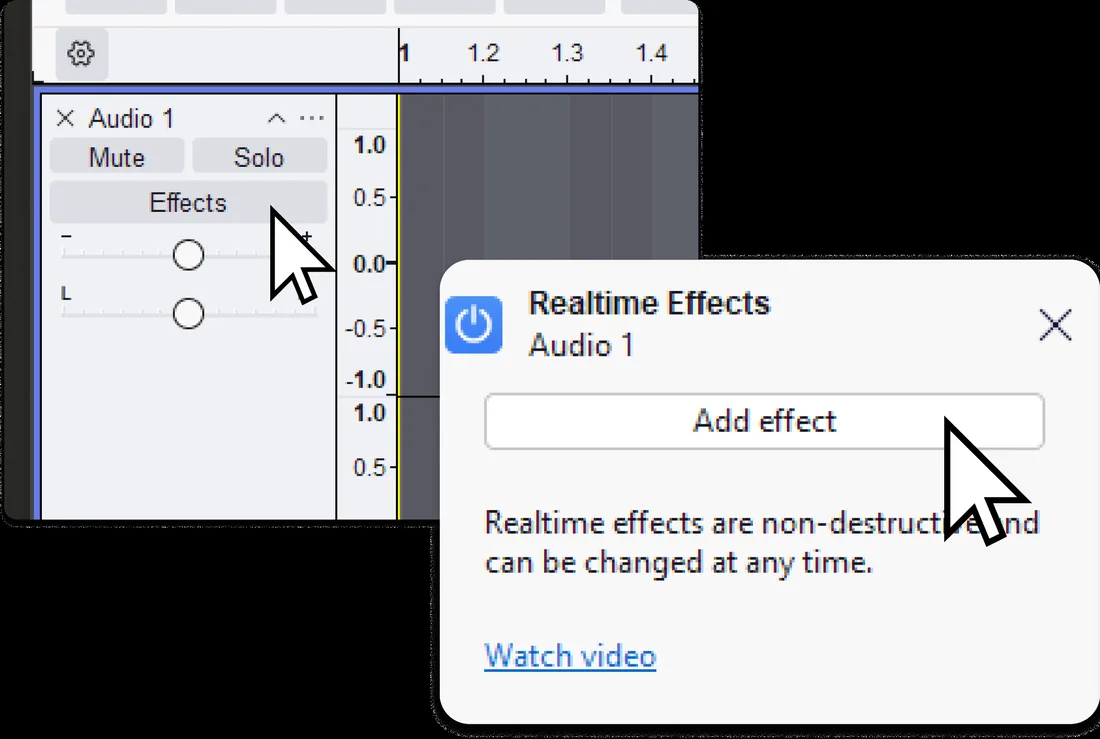
A restart is often enough. If the effect is missing, open Tools > Plugin Manager, run a rescan, search for the suite and individual processor names, then enable any disabled entries. Menu wording can vary slightly by Audacity release.
If nothing is listed, stop repeating the scan and return to compatibility checks. Confirm that MuseHub installed an actual plugin component, then review format, architecture, security software, macOS privacy controls, and third-party activation.
- 1Open Plugin Manager
Use the plugin-management command in the Effect menu.
- 2Run a rescan
Scan only after MuseHub reports installation complete.
- 3Search product names
Look for MuseFX and individual effect names.
- 4Enable entries
Turn on disabled effects and confirm.
Add MuseFX as a realtime effect
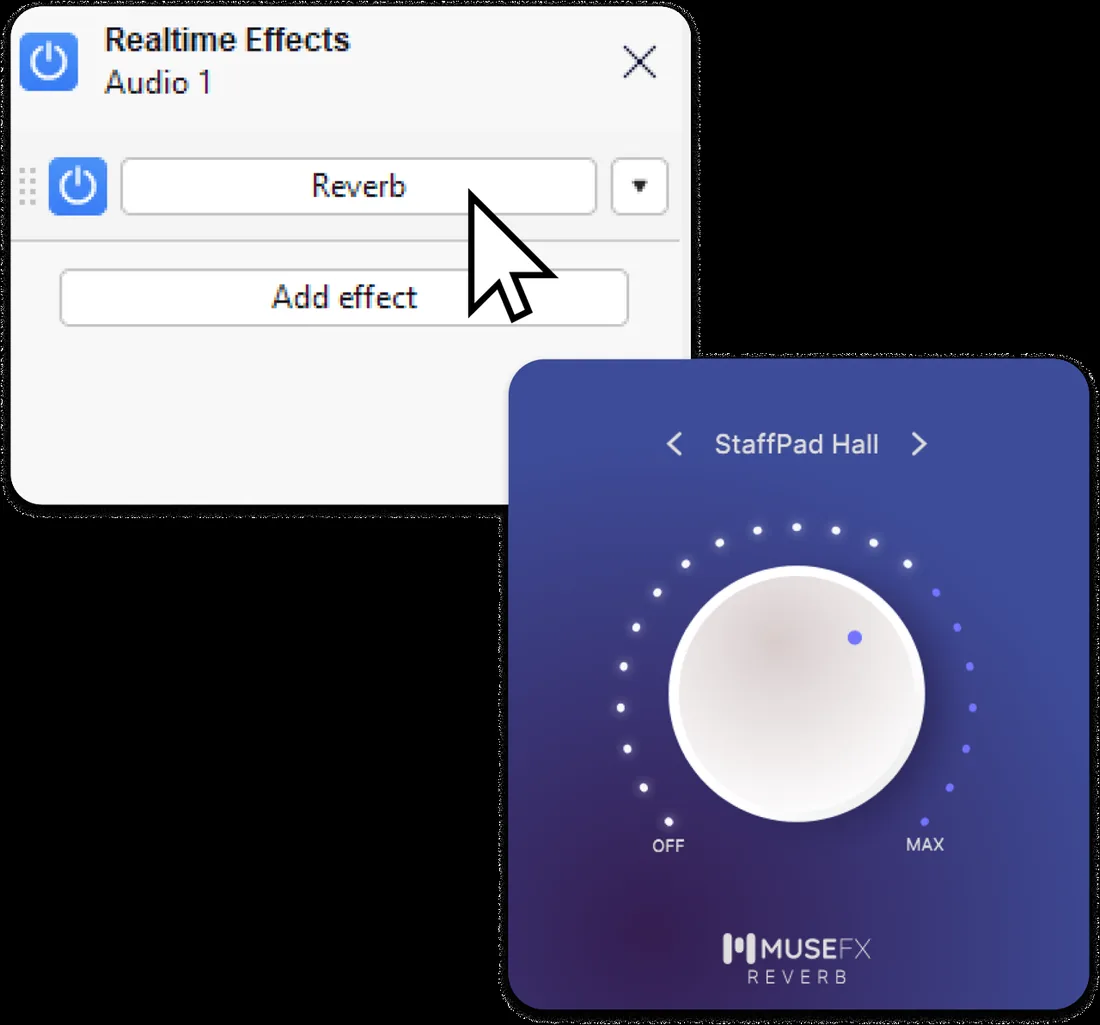
Realtime Effects are a safe way to learn because the original audio is not permanently rewritten. Use a short test clip, open the track Effects panel, choose Add effect, select the processor, and adjust one control at a time while the project plays. Compare with bypass at a similar loudness.
A useful starter chain is corrective EQ, light compression, and then reverb or delay. Avoid stacking processors without a purpose, watch for clipping, save the project before experimenting, and export a separate finished audio file.
- 1Create a test track
Use a short voice, instrument, or music clip.
- 2Open Realtime Effects
Choose the track Effects button and Add effect.
- 3Select the plugin
Pick MuseFX or another detected effect.
- 4Adjust and compare
Change one setting and use bypass.
- 5Save before export
Keep the live chain in the project, then export separately.
Fix a MuseHub plugin that does not show in Audacity
Treat a missing plugin as a compatibility or installation problem. Reinstall from the official MuseHub product listing and never download random DLL or component files from unofficial archives or cracked bundles.
If one MuseFX effect appears but another does not, search for the individual processor name and check whether Audacity disabled it. If scanning crashes Audacity, remove the most recently installed plugin and add products back one at a time.
| Symptom | Likely cause | Best action |
|---|---|---|
| Plugin absent | Wrong format, architecture, or incomplete install | Check formats and reinstall from MuseHub |
| Listed but disabled | Audacity has not enabled it | Enable and restart |
| Opens but is silent | Bypass, license, or routing | Check playback and activation |
| Audacity crashes while scanning | Plugin binary or dependency failure | Remove newest plugin and scan one at a time |
| Presets appear without an effect | No actual plugin component installed | Confirm VST3 or Audio Unit is included |
Know the limits and use verified sources
Not every MuseHub product is an Audacity plugin. MuseSounds target MuseScore Studio playback, loops are audio files, and applications open separately. Check every product page instead of assuming the whole catalog is compatible.
This site does not host software binaries. On July 23, 2026, the stable MuseHub Windows and macOS installer URLs returned HTTP 200. The official pages still do not expose one reliable public MuseHub version number, so this guide uses verified source links. MuseFX is listed separately as version 1.0.7 and should be installed through MuseHub.
MuseHub plugins in Audacity FAQ
Can I use MuseHub plugins in Audacity?
Yes, when the product supplies a format and architecture supported by Audacity. MuseFX is the simplest official example.
How do I make Audacity find a new plugin?
Restart Audacity, open Effect > Plugin Manager, rescan, search for the product, and enable it.
Do I need to install Audacity through MuseHub?
No. The applications are separate, and a legitimate Audacity installation can load compatible plugins.
Why is MuseFX not showing?
Installation may be incomplete, the entry may be disabled, or format and architecture may not match.
Are MuseHub plugins free?
Some are free and some are paid. MuseFX is a free starter suite.
Can I use MuseSounds as an Audacity plugin?
No. MuseSounds are intended for MuseScore Studio playback, not general Audacity effects.
Official sources used
Workflow, version, and download-source details were checked on July 23, 2026.
- How to use effects in Audacity - Official MuseHub installation, rescan, and realtime-effects workflow.
- Audacity plugin support - Official Audacity plugin format and management guidance.
- MuseFX product page - Official product listing and displayed version.
- MuseHub download links - Official Windows and macOS installer destinations.