
MuseHub Update Guide for Windows and Mac
A MuseHub update is not identical on every platform. Windows can update the desktop app when it restarts, while current official guidance directs macOS users to replace the app with the latest Universal installer when automatic updating does not complete. This guide shows how to check the installed version, update safely, and recover from a stuck or crashing update.

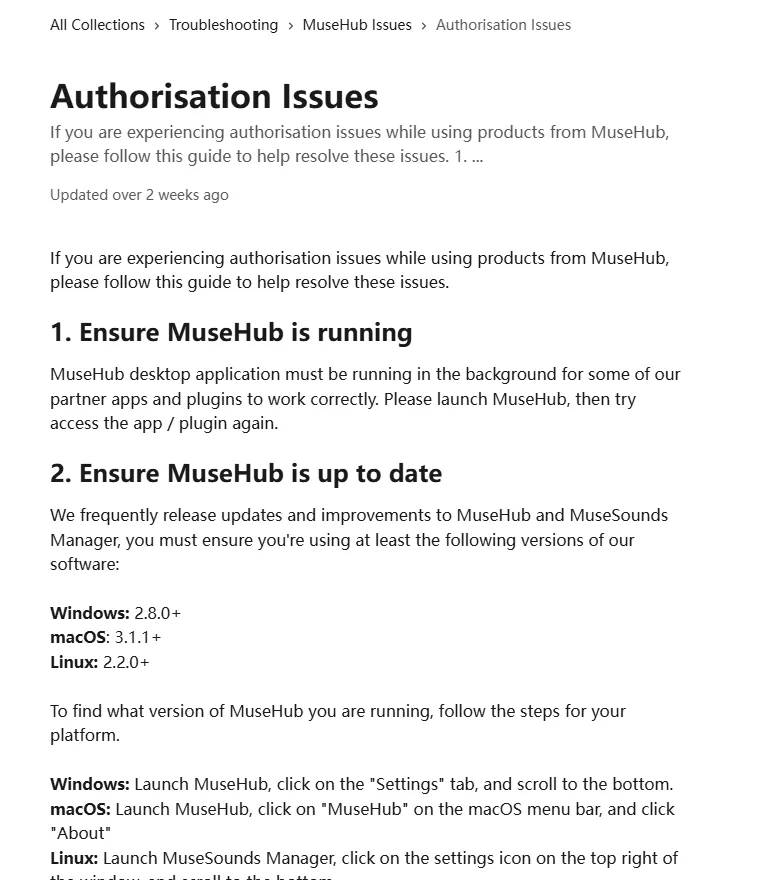
To update MuseHub on Windows, quit software using MuseHub products, restart MuseHub, and let the app complete its update. On macOS, check MuseHub > About; if the app does not update, download the current Universal package, install it, and run MuseHub from Applications. Official support currently requires at least Windows 2.8.0 or macOS 3.1.1 for its authorization workflow, but those are minimum supported versions rather than a promise that they are the newest releases.
Verified update facts
| Windows version check | Open MuseHub Settings and scroll to the bottom |
|---|---|
| macOS version check | Open MuseHub, then choose MuseHub > About |
| Official support minimums | Windows 2.8.0+, macOS 3.1.1+, Linux Manager 2.2.0+ |
| Windows installer | Muse_Hub.exe, 42,343,752 bytes, verified HTTP 206 on July 30, 2026 |
| macOS installer | Muse_Hub.pkg, 17,954,652 bytes, verified HTTP 206 on July 30, 2026 |
| Version wording | The official download page offers the latest installer but does not expose one cross-platform public version number |
Check your MuseHub version before updating
Record the installed version before changing anything. On Windows, open MuseHub, choose Settings, and scroll to the bottom. On macOS, keep MuseHub active and choose MuseHub > About from the system menu bar. Linux uses MuseSounds Manager rather than the complete MuseHub marketplace; its version appears at the bottom of the manager settings.
The official authorization guide currently says its troubleshooting procedure requires at least MuseHub 2.8.0 on Windows, 3.1.1 on macOS, or MuseSounds Manager 2.2.0 on Linux. Treat these as minimum support baselines. MuseHub's download page says its links deliver the latest version, but it does not publish one reliable public version number that applies to both Windows and macOS.
A search for MuseHub 2.8 may therefore describe the Windows support baseline, an update prompt, or a current Windows build. It should not be copied into macOS metadata. Compare the number inside your own app with first-party support instructions rather than relying on a third-party version directory.
| Platform | Where to check | Verified support baseline | Normal update path |
|---|---|---|---|
| Windows | Settings, bottom of page | 2.8.0 or later | Restart MuseHub and allow its update |
| macOS | MuseHub > About | 3.1.1 or later | Install the current Universal package when needed |
| Linux | MuseSounds Manager settings | 2.2.0 or later | Use the package or repository method for MuseSounds Manager |
How to update MuseHub on Windows
Save open projects and quit applications or plugins that depend on MuseHub before updating. Leaving a host application open can keep files or authorization components in use. Confirm that the computer runs a supported 64-bit Windows release and that security software has not quarantined the existing MuseHub process.
MuseHub can update itself when it restarts on Windows. Give the restart time to finish, then reopen Settings and confirm the displayed version changed. Also check Library and Notifications because product updates for apps, plugins, and MuseSounds are separate from the MuseHub desktop-app update.
If the app remains on an old version, use the verified first-party Muse_Hub.exe link below. The CDN returned a stable partial-content response and a total size of 42,343,752 bytes on July 30, 2026. The filename and byte count help identify the current file checked for this guide; they are not a security scan or a permanent version guarantee.
- 1Close dependent software
Save projects and fully quit MuseScore Studio, Audacity, DAWs, and plugins that use MuseHub products.
- 2Restart MuseHub
Quit the tray application, launch it again from Start, and wait for update activity to finish.
- 3Check the version
Open Settings, scroll to the bottom, and record the new number.
- 4Use the official installer if needed
Run the current Muse_Hub.exe over the existing installation when the updater cannot move forward.
- 5Retest one product
Open MuseHub first, then launch one affected app or plugin and confirm authorization and downloads work.
How to update MuseHub on macOS
On macOS, first check MuseHub > About and quit software using MuseHub content. If the installed app does not update normally, download the current Universal package from the official Muse CDN, complete the installer, and launch MuseHub from Applications. Do not keep running a mounted or temporary copy.
After installation, open System Settings, search for Login Items, and confirm MuseHub remains enabled under Allow in the Background. A disabled background permission can make the catalog open while downloads, installs, updates, or authorization fail later.
The verified Muse_Hub.pkg returned a total size of 17,954,652 bytes and a last-modified header dated July 13, 2026 when checked on July 30. A future official package can change without changing the stable URL, so use the current first-party destination rather than preserving an old local installer indefinitely.
- 1Check About
Open MuseHub and record the version from MuseHub > About.
- 2Download the Universal package
Use the official Muse_Hub.pkg destination and keep the original filename.
- 3Complete the installer
Follow the macOS package prompts and approve only expected system requests.
- 4Run from Applications
Launch the installed application, not a temporary or mounted copy.
- 5Verify background permission
Keep MuseHub enabled in System Settings > Login Items > Allow in the Background.
MuseHub app updates and product updates are different
Updating the MuseHub desktop app does not automatically mean every catalog product has updated. Apps, plugins, MuseSounds, loops, and other managed content can show their own update actions in Notifications or Library. Read the release summary before updating a plugin used in an important project, and back up the project or note the installed plugin version first.
A product update can change presets, compatibility, sound, storage use, or host behavior. Finish one update before starting another, keep the computer awake, and avoid changing networks or disconnecting an external content drive. If only one product fails, repair or reinstall that product before removing the entire MuseHub application.
MuseSounds Pro also requires a current MuseHub version according to official support. If a subscription or library does not appear, update MuseHub first, restart it, verify the account and registered devices, and then retry the product.
Fix MuseHub when an update is stuck or crashes
When MuseHub crashes while updating on macOS or will not update on Windows, begin with a clean restart rather than repeatedly clicking the update action. Quit dependent applications, quit MuseHub, restart the computer once, launch MuseHub before other audio software, and check the version again.
Confirm free space on both the system drive and the content destination. Updates may require room for the download, temporary extraction, installed files, and rollback data. Keep external drives connected, awake, and writable. Also check that the network is stable and that a VPN, proxy, firewall, endpoint-security rule, or incorrect system clock is not interrupting the request.
Old Windows builds 2.3.3 through 2.3.7 have a documented update problem and may need a fresh first-party installer. Reinstallation is also reasonable when the desktop app itself is damaged or closes immediately. It is less likely to fix a temporary server outage, the wrong account, a full device list, an unsupported plugin format, or a disconnected sound-library drive.
| Symptom | Likely cause | Best next action |
|---|---|---|
| Update loops after restart | Old or damaged app files | Run the current first-party installer |
| macOS update crashes | Old package, permission, or in-use files | Quit apps, install the Universal package, verify Login Items |
| Download stops | Storage, network, or destination permission | Check space, connection, drive state, and write access |
| App updates but plugin does not | Separate product update or compatibility issue | Update or reinstall only the affected product |
| Authorization fails after update | Background app, account, or device state | Run MuseHub, sign in correctly, review registered devices |
Use verified downloads and know when to reinstall
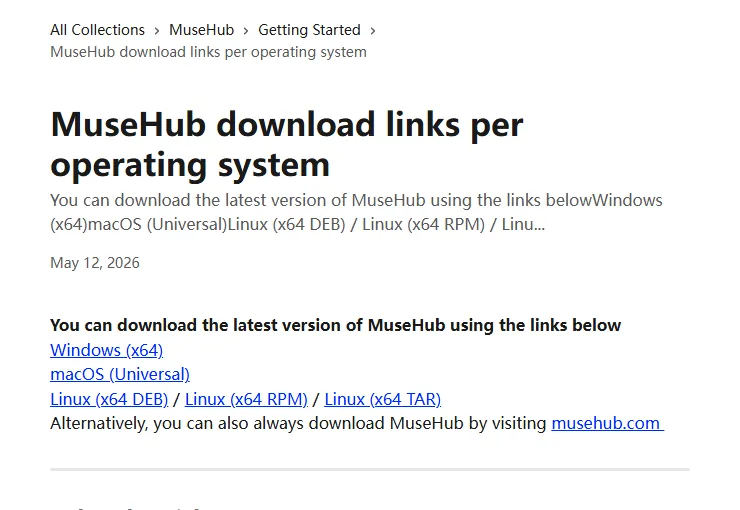
Use the stable links published by MuseHub support. This site verified the final Windows and macOS file URLs with HTTP 206 partial-content responses, expected filenames, and first-party CDN metadata on July 30, 2026. The buttons on this page point to those files directly rather than a store listing, countdown intermediary, or guessed CDN path.
Do not use a mirror that claims a newer version number without a matching first-party release source. Avoid cracked packages, standalone DLL replacements, and download directories that cannot explain the publisher. An unfamiliar version label is not proof that a package is newer, complete, or compatible.
Reinstall MuseHub when it cannot remain running, is trapped on a documented obsolete updater, or support directs you to replace damaged app files. Reinstalling the manager is not the same as deleting MuseSounds, plugins, loops, or project files. Preserve content unless the repair procedure specifically requires removal, then use the full troubleshooting and uninstall guides before deleting user folders.
MuseHub update FAQ
What is the latest MuseHub version?
MuseHub's official download page supplies the latest installer but does not publish one public version number for both Windows and macOS. Check Settings on Windows or MuseHub > About on macOS, and use the current official installer when necessary.
Is MuseHub 2.8 the latest version?
Official support lists Windows 2.8.0 as a minimum for its authorization procedure. That does not prove 2.8.0 is the newest Windows release, and it does not apply to macOS.
Why will MuseHub not update?
Common causes include old updater files, in-use components, low storage, destination permissions, security software, unstable networking, or a temporary service problem. Restart cleanly, check the version, then use the current first-party installer.
Why does MuseHub crash when updating on macOS?
Quit apps using MuseHub products, restart the Mac, install the current Universal package, run MuseHub from Applications, and verify its Login Items background permission.
Will reinstalling MuseHub delete MuseSounds or plugins?
Reinstalling the manager does not automatically mean deleting all managed content. Preserve libraries and projects unless a first-party repair step specifically requires removal.
Do MuseHub plugins update with the MuseHub app?
Not necessarily. The desktop app and individual apps, plugins, and MuseSounds can have separate update actions in Library or Notifications.
Where should I download a MuseHub update?
Use the stable Windows or macOS file links published by MuseHub support, or visit musehub.com. Avoid mirrors and guessed CDN filenames.
Official sources used
Version, update, installer, and recovery details were checked on July 30, 2026.
- MuseHub download links per operating system - Current first-party Windows, macOS, and Linux destinations.
- Authorisation Issues - Minimum versions, version-check locations, account, device, and restart guidance.
- Reinstalling MuseHub - Platform-specific reinstall workflow.
- MuseSounds Manager changelog - Stable Linux Manager release and in-development status.