
How to Download MuseScore Without MuseHub
Yes. You can download and install MuseScore Studio directly from the official MuseScore download page without installing the MuseHub desktop manager. This guide shows the current 4.7.4 files for Windows, macOS, and Linux, explains which package fits each computer, and separates the standalone notation app from MuseHub-managed MuseSounds.
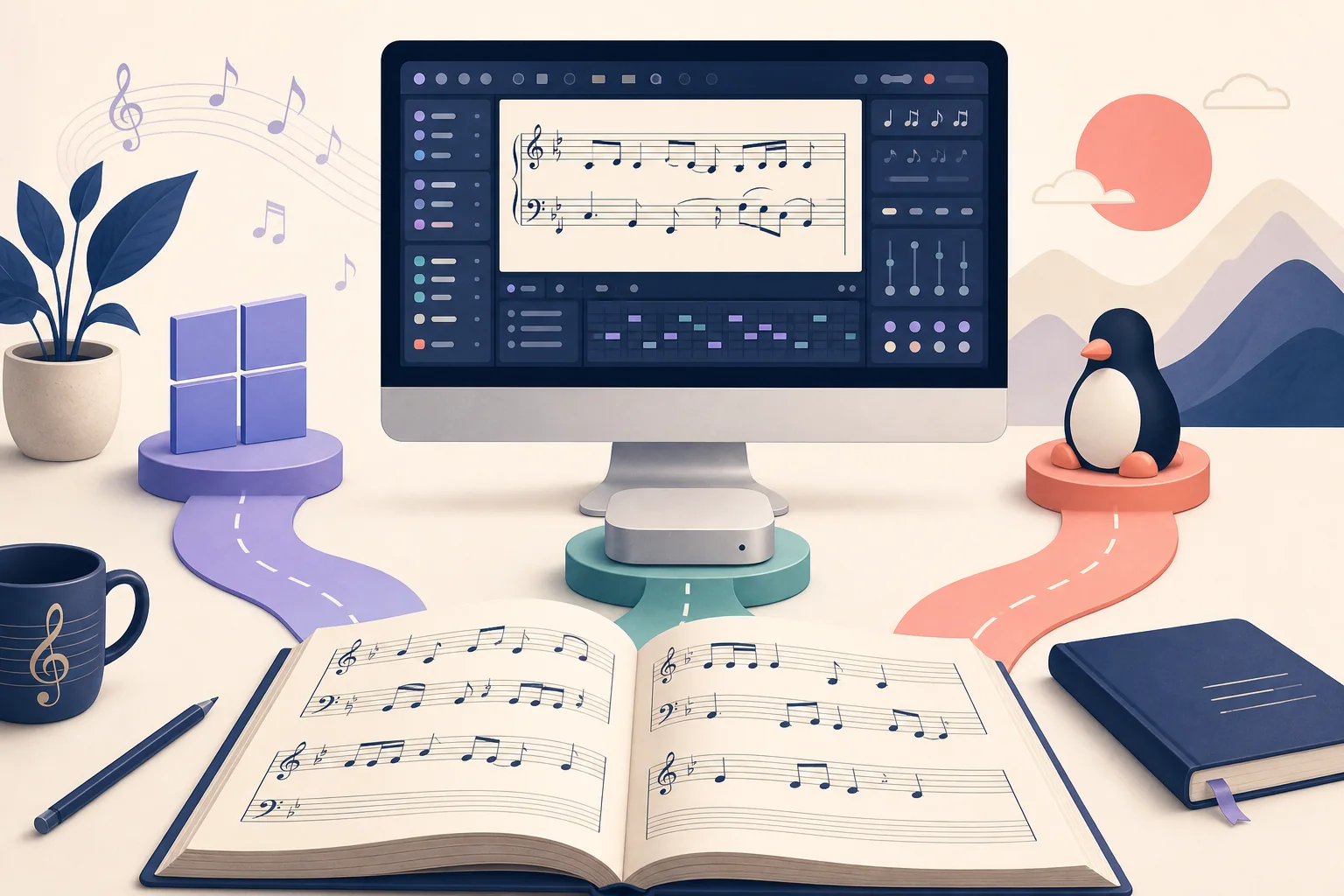
Use the official MuseScore Studio download page, choose Windows, macOS, or Linux, and download the platform file directly. The current release checked for this guide is MuseScore Studio 4.7.4, released July 7, 2026. You do not need MuseHub just to install the notation application. You may still need MuseHub for some managed catalog products or MuseSounds workflows on Windows and macOS.
Verified download facts
| Current MuseScore Studio release | 4.7.4 |
|---|---|
| Release date | July 7, 2026 |
| Windows package | x86_64 MSI installer; official CDN file |
| macOS package | Universal DMG; official CDN file |
| Linux package | x86_64 AppImage; official CDN file |
| MuseHub account for MuseScore download | Not required for the standalone MuseScore Studio download |
| File-size evidence | Not published here because the verified CDN response did not expose a usable Content-Length |
Can you use MuseScore without MuseHub?
MuseScore Studio and MuseHub are different products. MuseScore Studio is the notation application: it lets you write, edit, arrange, print, and play scores. MuseHub is a catalog, delivery, authorization, and update manager for participating products. Installing one is not a prerequisite for installing the other when your only goal is the standalone MuseScore application.
The cleanest route is to start at the official MuseScore download page, select your operating system, and keep the original filename. Avoid search-result mirrors, modified installers, download wrappers, and pages that promise a cracked or unlocked version. A direct file link is useful only when it comes from an official page and the file name and platform match what you intended to download.
This page focuses on the independent MuseScore download decision. It does not promise that every MuseSounds library, MuseSampler component, or MuseHub catalog product can be downloaded separately. Those products have different delivery and license rules, so the correct next step depends on whether you need notation software, playback content, or a managed plugin.
- Need to write or edit notation? Download MuseScore Studio directly.
- Need MuseSounds on supported Windows or macOS systems? Review the MuseHub workflow as well.
- Need Linux MuseSounds management? Check the separate MuseSounds Manager guide.
- Need Audacity or plugins? Do not assume a MuseScore package installs an audio editor or VST effect.
Choose the correct MuseScore Studio download
The official page lists separate files for Windows, macOS, and Linux. Pick the operating system and architecture first; do not choose a file only because its extension looks familiar. Windows uses an MSI installer, macOS uses a Universal DMG, and Linux uses an x86_64 AppImage in the release checked here.
The 4.7.4 release is the version verified for this guide. The file paths below are stable, query-free official CDN URLs and returned HTTP 200 during the check on August 16, 2026. The CDN did not provide a reliable file size in the response headers, so this page does not invent one. Recheck the official download page before a later installation because releases can change.
| Platform | File | Best next step |
|---|---|---|
| Windows 64-bit | MuseScore-Studio-4.7.4.260706075-x86_64.msi | Use the Windows installer, then launch MuseScore Studio from Start. |
| macOS Universal | MuseScore-Studio-4.7.4.260706075.dmg | Open the disk image and move MuseScore Studio to Applications. |
| Linux x86_64 | MuseScore-Studio-4.7.4.260706075-x86_64.AppImage | Make the AppImage executable and launch it from a trusted local folder. |
Download and install MuseScore on Windows without MuseHub
Choose the x86_64 MSI when the computer runs a supported 64-bit Windows installation. The official MuseScore download page currently describes Windows 10 or later as the baseline in the checked release context. If Windows security or an organization policy blocks an installer, verify the source and ask the administrator rather than disabling protection globally.
Keep the MSI filename intact until installation finishes. If a browser renames the file or a third-party site inserts an additional downloader, stop and return to the official page. MuseScore Studio is the application you want here; installing MuseHub later will not make this standalone package more official or more complete.
- 1Download the Windows x64 MSI
Use the verified official CDN file below or open the official download page first if you want to confirm the current release.
- 2Open the MSI
Run the file from your Downloads folder and approve the operating-system prompt only when the filename and source are expected.
- 3Choose the install location
Accept the normal location unless your organization or storage plan requires another folder. Keep enough space for scores, sound content, and future updates.
- 4Launch MuseScore Studio
Open it from Start and create or open a score. A MuseHub login is not required for the basic standalone application download.
- 5Add managed content only if needed
If you later need MuseSounds or another participating product, follow its own official delivery and account requirements instead of assuming the standalone installer contains it.

Download and install MuseScore on macOS without MuseHub
The Universal DMG is the right starting point for supported Intel and Apple silicon Macs when the official page lists it for the current release. Open the disk image, move the application to Applications, and launch that installed copy. Keeping a temporary copy in Downloads or a mounted disk image can create confusing permissions and update behavior later.
macOS may show a security prompt for an application downloaded from the internet. Confirm that the file came from the official MuseScore page and use the operating system's normal approval flow. Do not install a repackaged archive just because it claims to remove MuseHub or unlock paid content.
- 1Download the Universal DMG
Use the verified direct file below, or begin at the official download page to see the current macOS release.
- 2Open the disk image
Double-click the DMG and drag MuseScore Studio to Applications as instructed by the package.
- 3Launch the Applications copy
Eject the disk image after copying and open the application from Applications rather than repeatedly running the temporary mounted copy.
- 4Check audio and file permissions
Allow only the permissions needed for the features you use. MuseScore's notation work does not require a MuseHub desktop manager.
- 5Decide on MuseSounds separately
If playback libraries are missing, read the MuseScore and MuseHub guidance before deleting folders or downloading an unverified library archive.

Download MuseScore on Linux without MuseHub
The verified Linux choice is the x86_64 AppImage. It is a standalone MuseScore Studio distribution, not the MuseSounds Manager package. Make sure the computer uses x86_64 and that your desktop environment allows an AppImage to run. If you prefer a distribution package, use the current official Linux options rather than renaming or extracting an unrelated Windows or macOS file.
Linux users should keep two questions separate: can MuseScore Studio run, and how will MuseSounds be managed? The standalone application can be installed without MuseHub, while the separate MuseSounds Manager has its own supported release, package formats, and system requirements.
- 1Download the x86_64 AppImage
Use the official file below and save it in a trusted local directory.
- 2Make it executable
Use your file manager's permissions dialog or the normal chmod workflow for your distribution.
- 3Launch and test a score
Open MuseScore Studio, create a short score, and confirm playback works with the audio system you intend to use.
- 4Handle sound libraries separately
For MuseSounds on Linux, read the dedicated MuseSounds Manager guide and its official package links. Do not call the AppImage a MuseHub replacement for every catalog feature.

What changes when you skip MuseHub?
Skipping MuseHub keeps the initial MuseScore Studio installation simple, but it also means you are not using the MuseHub catalog and manager for every related product. MuseHub can handle supported downloads, installations, authorizations, and updates. MuseScore Studio remains the creative notation workspace. Neither product replaces the other.
If you only need to write, edit, print, or play standard scores, the direct MuseScore route is usually the clearest fit. If you want managed MuseSounds, catalog plugins, courses, loops, or products that require authorization, read the MuseHub for MuseScore guide and compare the product roles in MuseHub vs MuseScore before choosing a second installation.
Do not treat a direct MuseScore download as a way to bypass a product license. It removes one distribution manager from the initial setup; it does not unlock paid content, remove account rules, or create a direct download for every library.
Accounts, MuseSounds, and missing playback
The standalone MuseScore Studio download does not require a MuseHub account. That does not mean every feature or content library is account-free. MuseSounds, MuseSampler assets, purchased items, and managed products can have separate download, license, or authorization requirements.
If MuseScore opens but a score does not sound as expected, check the selected sound profile and the installed playback libraries before reinstalling the application. A missing MuseSound is a content or profile problem, not proof that the main MuseScore installer is broken.
For supported Windows and macOS MuseSounds workflows, use the official MuseHub route described in the existing MuseHub for MuseScore guide. For Linux, use the separate MuseSounds Manager for Linux guide. Keep these paths separate from the standalone MuseScore download so you can troubleshoot the right component.
- MuseScore Studio: notation, editing, layout, playback, and score export.
- MuseSounds: specialized sampled playback content for supported MuseScore workflows.
- MuseHub: catalog delivery, installation, authorization, and updates for participating products.
- MuseSounds Manager for Linux: a separate Linux manager, not the full MuseHub marketplace.
Common mistakes to avoid
The most common mistake is searching for a modified installer that promises to remove every account or manager requirement. That may replace a simple direct installation with an unverifiable binary. Another mistake is downloading the wrong platform file: an MSI is not a macOS package, and the Linux AppImage is not the MuseSounds Manager archive.
When a problem appears, record the operating system, package name, release, and exact symptom. Then check the official page and the narrowest relevant guide. A clean reinstall should be a later step after source, architecture, permissions, storage, and content-library checks.
- Do not use a mirror, crack, repack, or extra downloader when an official file is available.
- Do not claim that MuseScore Studio includes every MuseSounds or MuseHub catalog item.
- Do not delete sound libraries before checking their location and license context.
- Do not publish a file size or latest version number unless the official source exposes it and the value has been checked.
MuseScore Without MuseHub FAQ
Can I download MuseScore without MuseHub?
Yes. Download MuseScore Studio from the official MuseScore page and choose the file for Windows, macOS, or Linux. The standalone notation application does not require MuseHub for the initial download.
How do I install MuseScore without MuseHub?
Use the official platform installer: open the Windows MSI, move the macOS application from the DMG to Applications, or make the Linux AppImage executable. Then launch MuseScore Studio directly.
What is the current MuseScore Studio version?
This guide verified MuseScore Studio 4.7.4, released July 7, 2026, from the official download and 4.7 release pages. Recheck the official page before a later installation.
Do I need a MuseHub account for MuseScore Studio?
No for the standalone MuseScore Studio download. Accounts can still matter for MuseHub-managed products, purchases, authorizations, or some sound-library workflows.
Can I use MuseSounds without MuseHub?
Do not assume that every MuseSounds library has a separate direct file. Supported Windows and macOS workflows may use MuseHub, while Linux uses the separate MuseSounds Manager. Follow the official content-specific instructions.
Is the Linux AppImage the same as MuseSounds Manager?
No. The AppImage in this guide is MuseScore Studio for Linux. MuseSounds Manager is a separate Linux product with its own package formats and requirements.
Why does MuseScore open but have missing sounds?
The application and playback library are separate components. Check the selected sound profile, library installation, content location, and the relevant MuseHub or MuseSounds Manager workflow before reinstalling MuseScore.
Official sources checked
Version and direct-file details were checked on August 16, 2026 against first-party MuseScore pages. The page does not publish a file size because the verified CDN response did not expose a reliable Content-Length.
- MuseScore Studio official download page - Platform selection, current release links, checksums, and system context.
- MuseScore 4.7 release page - Release 4.7.4 and July 7, 2026 release date.
- MuseHub for MuseScore - Existing guide for MuseSounds, MuseHub-managed content, and playback workflows.
- MuseSounds Manager for Linux - Separate Linux manager path and package guidance.