
How to Use MuseHub Plugins in REAPER
MuseHub plugins in REAPER rely on a simple handoff: MuseHub installs compatible files, and REAPER scans their folder before loading an effect. This guide covers format checks, paths, rescanning, and track tests.
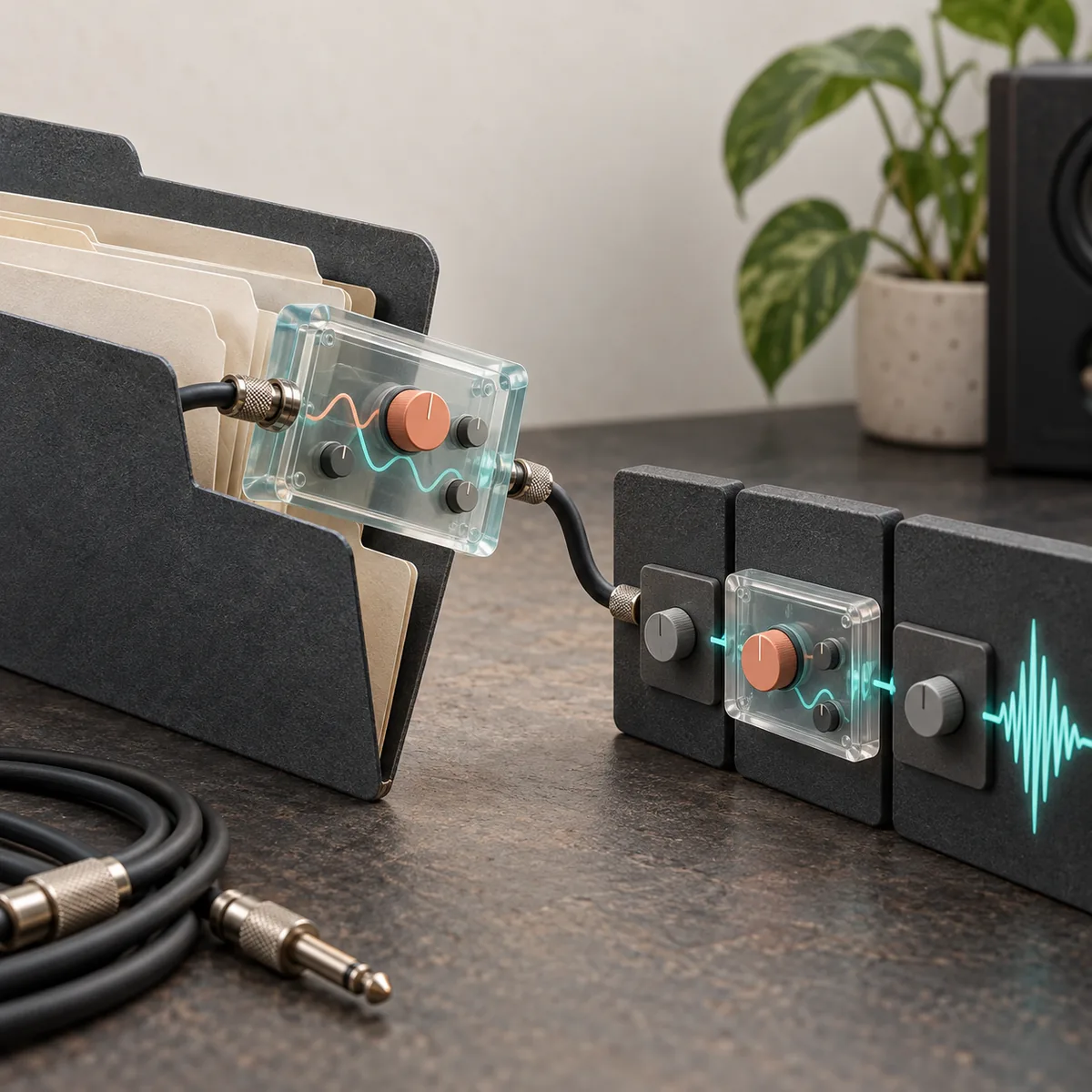
In MuseHub, install a product that lists a plug-in format supported by your REAPER setup. Then open REAPER's Options > Preferences > Plug-ins > VST page, confirm that the installed folder is in VST plug-in paths, and choose Re-scan. Search for the effect in REAPER's FX browser and add it to a track. On Windows, MuseHub documents C:\Program Files\Common Files\VST3 as the standard VST3 location.
At a glance
| What REAPER loads | A compatible VST2 or VST3 plug-in; the exact formats depend on the product and REAPER installation. |
|---|---|
| Windows VST3 folder | C:\Program Files\Common Files\VST3, according to MuseHub's install-location guide. |
| Main host step | Check the VST plug-in paths in REAPER, then rescan. |
| Expected result | The effect appears in the FX browser and can be inserted on a track. |
How MuseHub plugins work in REAPER
To use MuseHub plugins in REAPER, treat MuseHub as the catalog and installer and REAPER as the host that scans plug-in folders and loads effects into a project. Installation does not place a product inside a particular project.
Check the product listing before troubleshooting. A MuseSound, loop, course, or standalone app is not a DAW plug-in just because MuseHub manages its installation.
Check the plug-in format before installing
Use the format named by the product. REAPER's VST preferences manage VST paths; other formats may use different host settings. Choose a build supported by your operating system and REAPER installation.
Match the product type to the job. An effect processes audio, an instrument may need MIDI input, and a sound library is not a conventional VST. MuseSounds are for MuseScore playback and should not be expected in REAPER's VST list.
Find the MuseHub installation folder
MuseHub's official guide lists C:\Program Files\Common Files\VST3 for Windows VST3 plug-ins and /Library/Audio/Plug-Ins for macOS plug-ins. Confirm the product format and install status before changing a path.
Open the expected folder and match the product name. For VST2 or a custom install, use the folder selected by that product's installer. Do not move a managed file into REAPER's application directory.
- 1Confirm installation
MuseHub should show the product as installed, not queued or paused.
- 2Check the location
Inspect the documented platform folder or the custom folder chosen by the installer.
- 3Match name and format
Record the folder if similar files appear; do not delete or rename them.
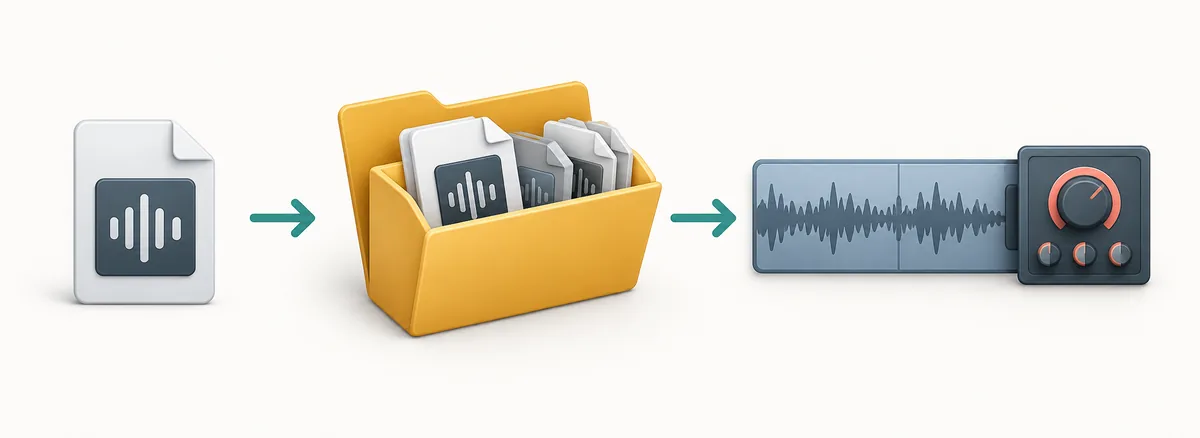
| Platform or format | Location to check | What to confirm |
|---|---|---|
| Windows VST3 | C:\Program Files\Common Files\VST3 | The installed product file is present in the expected shared folder. |
| macOS plug-ins | /Library/Audio/Plug-Ins | Use the format and path shown for the product; do not assume every format uses the same subfolder. |
| VST2 or custom location | The folder selected by the plug-in installer | Add that exact folder to REAPER if it is not already scanned. |
Add the path and rescan in REAPER
In REAPER's Preferences choose Plug-ins > VST. On Windows, open Options > Preferences; macOS menu labels can vary by release.
Check VST plug-in paths. Add the containing folder only if it is missing, keep other entries, and use the page's existing path separators.
- 1Open VST preferences
Choose Plug-ins > VST in REAPER's Preferences.
- 2Check the path list
Add the containing folder only if it is missing; keep other paths.
- 3Rescan
Choose Re-scan. If needed, use the cache-clearing rescan available in your version.
- 4Wait for completion
Open the FX browser after scanning. Restart REAPER if the product instructions require it.
Confirm the effect loads on a track
Select a track and search the FX browser for the product name. Insert an effect on a test track and confirm its window opens. Instruments may be listed differently and can require MIDI input.
Save the project and reopen it once. If REAPER reports a missing effect, record the displayed name and format before reinstalling; this helps separate a path issue from a different plug-in build.
Troubleshoot a MuseHub plugin missing in REAPER
When MuseHub plugins in REAPER do not appear, work from the file toward the host: confirm installation, locate the file, check format and architecture, verify REAPER's path list, then rescan.
A correct installation can still be missing from the host list if REAPER has not scanned its folder. Use the observation below to choose the next check.
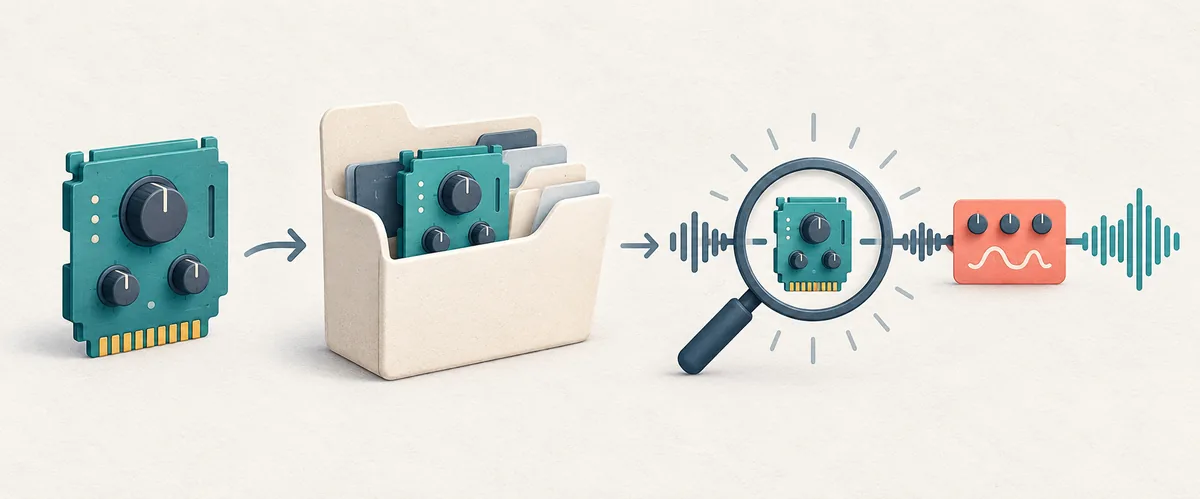
| What you see | Check next |
|---|---|
| MuseHub does not show it as installed | Resume the install and confirm platform, account, storage, and product requirements. |
| The file exists but the FX browser cannot find it | Check the containing folder in REAPER's path list, then rescan. |
| The scan reports an error | Record the message and format; check the publisher's OS and architecture requirements. |
| The plug-in appears but will not load | Check the project and installed product names, format, and file location. |
| An instrument loads but is silent | Check MIDI input and track routing before repeating the scan. |
macOS notes and common setup mistakes
MuseHub lists /Library/Audio/Plug-Ins as a standard macOS plug-in location. Use REAPER's VST settings for VST products; confirm host support for other formats before changing paths.
Loops, courses, and MuseSounds are not loaded through a VST scan. If a compatible plug-in is still missing, follow the publisher's instructions and REAPER's current manual instead of deleting or moving files based on an old forum post.
MuseHub Plugins in REAPER FAQ
Does MuseHub install a plugin directly inside a REAPER project?
No. MuseHub installs supported products on the computer. REAPER scans compatible plug-in folders, lists the effect, and loads it into a project when you add it to a track.
Where does MuseHub install VST3 plugins on Windows?
MuseHub's install-location guide lists C:\Program Files\Common Files\VST3 for Windows VST3 plug-ins. Check the specific product format and installation status before changing a path.
How do I rescan plugins in REAPER?
Open Options > Preferences > Plug-ins > VST, confirm the folder appears in VST plug-in paths, and choose Re-scan. Menu labels may differ slightly between releases.
Why is my MuseHub plugin not showing in REAPER?
The product may still be installing, may not be a DAW plug-in, may use an unsupported format or architecture, or may be outside the folders REAPER scans. Verify the product file and path, then rescan before reinstalling.
Should I copy a VST3 file into the REAPER folder?
Usually no. MuseHub documents a shared VST3 location on Windows. Configure REAPER to scan the correct folder and avoid moving managed files, which can interfere with updates or create duplicate copies.
Can MuseSounds be used as a REAPER VST instrument?
Do not assume so. MuseSounds are libraries for MuseScore playback workflows, not ordinary VST effects. Check the product's own format and host-compatibility information.
Sources and verification
Product paths and host-specific scan steps can change. Check the product listing and the current host documentation before moving or removing plug-in files.
- Where does MuseHub install things? - Official MuseHub support article for Windows and macOS application, plug-in, and content locations.
- REAPER User Guide - Official REAPER documentation landing page; use the current guide for host settings and scanning behavior.
- How to Install VST Plugins in REAPER - Independent practical reference for VST paths and rescanning; check current menu labels against your installed REAPER version.