
How to Use MuseHub Plugins in FL Studio
If you installed a plugin through MuseHub but cannot find it in FL Studio, check the product format, confirm where it was installed, and scan that folder in FL Studio. This guide follows the complete route from the MuseHub Library to FL Studio's plugin browser. It also separates instruments, effects, MuseSounds, loops, and standalone apps so you do not troubleshoot the wrong type of product.

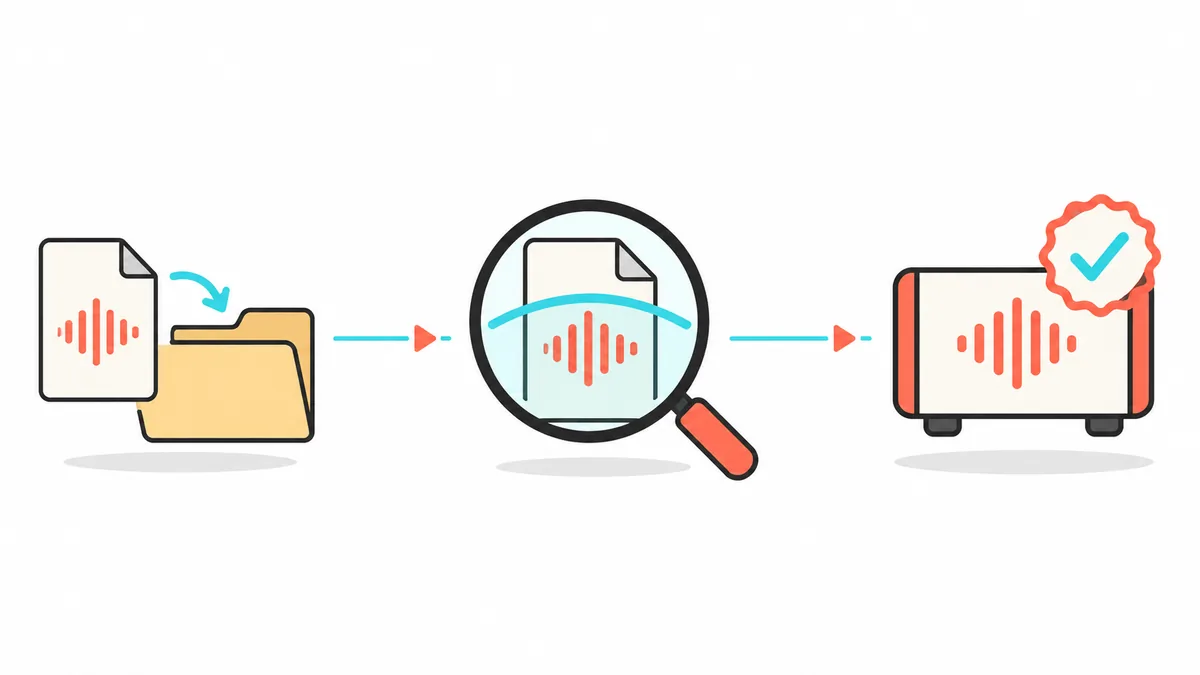
To use MuseHub plugins in FL Studio, install a product that offers a plug-in format supported by your FL Studio version, then open Options > Manage plugins and scan the folder that contains it. MuseHub says many plugins install into the shared VST3 location automatically. If the plugin is missing, verify its format and install state before adding a path or reinstalling. A scan finds a plug-in; you still need to load an instrument in the channel workflow or add an effect to a mixer insert.
Start with these checks
| Product type | A DAW plug-in is different from MuseSounds libraries, loops, or a standalone app. |
|---|---|
| Windows VST3 folder | C:\Program Files\Common Files\VST3 is the standard shared VST3 location documented by MuseHub. |
| macOS VST3 folder | /Library/Audio/Plug-Ins/VST3 is a common system location; a product may use a user folder. |
| Host action | Use FL Studio's plug-in manager to add a missing folder and scan installed plug-ins. |
| After scanning | Load an instrument as a generator or add an effect to a mixer insert. |
Check that the MuseHub product is an FL Studio plugin
Not everything in MuseHub is a DAW plug-in. A loop is audio content, MuseSounds is a playback library, and a standalone application opens separately. Check the product page for a plug-in format supported by your FL Studio version.
MuseHub says many plug-ins install into the VST3 folder, but a scan cannot turn every catalog item into a VST3 plug-in. Choose a format supported by both the product and host. Image-Line's current manual lists format-specific installation steps; use it if labels or support differ in your FL Studio release.
- A plug-in must match the host format and processor architecture.
- MuseSounds, loops, courses, and standalone apps do not appear in the ordinary VST plug-in list.
- A product listing is the source of truth for its format and host compatibility.
| What you installed | Where to look next |
|---|---|
| VST3 instrument or effect | Install it in MuseHub, then scan its VST3 folder in FL Studio. |
| MuseSounds library | Check its documented playback host and library browser; it is not automatically a VST3 plug-in. |
| Loop, course, or app | Open it through the product's own workflow rather than the plug-in picker. |
Install the plugin in MuseHub first
Open MuseHub and sign in with the account that owns the product. Find it in Library, check that the listing identifies a plug-in, and start its installation. Wait until MuseHub reports completion before opening the host. If a product page offers both VST and VST3, choose the format you intend to scan instead of installing several copies without a reason.
Keep the installation managed by MuseHub. Avoid copying a file into a guessed FL Studio folder; that can create duplicates or bypass updates. Note the product's format and use the MuseHub install locations guide if you need a path reference.
- 1Open MuseHub Library
Sign in to the account that owns the item and select the product you want to use.
- 2Confirm it is a plug-in
Read the supported format and host notes. Do not treat a sound library or loop as a VST effect.
- 3Install and wait
Let MuseHub finish the install. Quit and reopen MuseHub only if its status appears stuck, then verify the product state again.
- 4Note the format
Record whether you installed VST3 or another supported format so the FL Studio scan checks the right folder.
Scan the MuseHub plugin folder in FL Studio
When installation finishes, open FL Studio and choose Options > Manage plugins. Confirm that the installed folder is in the search paths, then run the scan action. Menu labels can change; use the Image-Line manual for your release.
MuseHub documents C:\Program Files\Common Files\VST3 on Windows. The common macOS system VST3 folder is /Library/Audio/Plug-Ins/VST3, though some products use a user folder. Add the product's actual location. A scan indexes the plug-in; it does not add it to an open project.
- Scan the folder for the format you installed.
- Let verification finish before judging the result.
- Inspect an invalid entry's reported path before removing files.
Load an instrument or effect in the right place
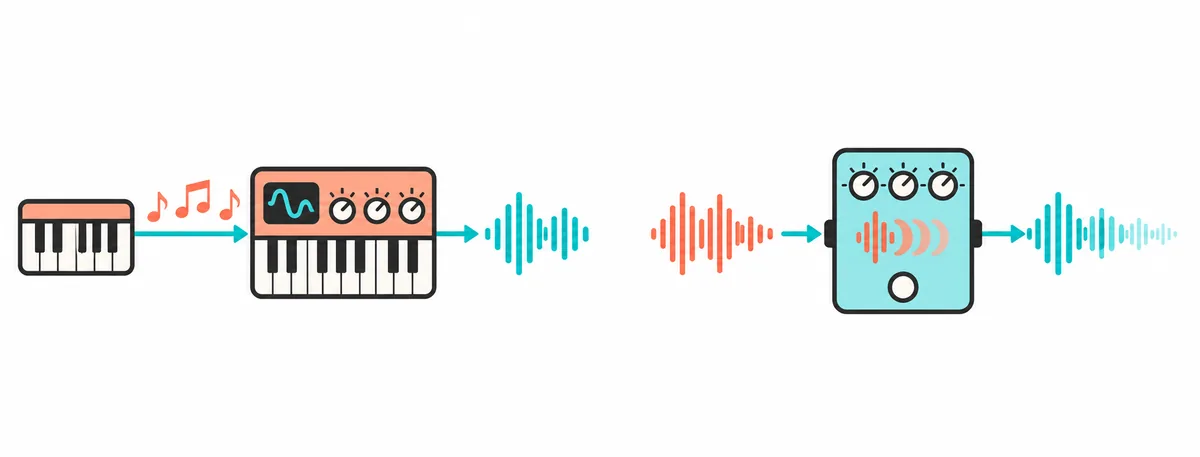
After scanning, use FL Studio's plug-in picker or database to find the product. A virtual instrument generates sound, so add it through the instrument or generator workflow and trigger a few notes. An effect processes audio that already exists, so add it to a mixer insert and play a source through that channel. The same plug-in can be installed correctly yet seem absent if you look in the wrong category.
Start with an empty project or a duplicate of a small test project. Confirm the plug-in opens, produces or processes audio, and saves with the project before depending on it in a larger session. If a project opens on another computer, that computer needs the compatible plug-in installed and authorized too; a project file is not a copy of the plug-in itself.
Fix a MuseHub plugin not showing in FL Studio
Change one variable at a time. First check the MuseHub product state and supported format, then inspect the path in FL Studio's plug-in manager. Restart the host only after a scan completes. Reinstalling every product or deleting a shared folder can make the cause harder to identify and may remove content used by other projects.
Use the symptom to choose the next check. A plug-in missing from every FL Studio project usually points to format, install, path, or scan state. A plug-in that appears but fails to open can instead point to licensing, a damaged install, a host-version requirement, or a product-specific dependency. For authorization, confirm MuseHub is running and signed in to the account that owns the product before changing files.
| Symptom | Check in this order |
|---|---|
| Nothing new appears | Confirm installation completed, then scan the exact folder for the installed format. |
| A VST3 is absent | Check the shared or user VST3 path and add the actual location in the manager. |
| It appears under the wrong category | Check whether the item is an instrument or effect, then search the matching category. |
| The plug-in is listed but will not open | Check host and processor compatibility, sign-in, product repair, and vendor requirements. |
| Only MuseSounds or loops are missing | Use the library's documented playback or content workflow, not a VST scan. |
MuseSounds and other MuseHub content are different
A MuseHub download can be a plug-in, a sound library, a loop, a course, or a separate application. These products do not share one loading path. VST3 effects and instruments are scanned by a compatible DAW. MuseSounds libraries are associated with MuseScore playback workflows unless the product documentation says otherwise. Loops are audio files, and standalone applications launch outside FL Studio.
This distinction prevents a common dead end: rescanning FL Studio cannot make a library appear as a VST3 effect. Check the product name and its MuseHub page first. If the item is MuseSounds, follow the MuseScore setup guidance; if it is a loop, open its content folder or browser; if it is a plug-in, return to the format and scan checks above.
A quick verification routine
Use a fresh project to test the full route: install one compatible product, scan its folder, then load it in the correct place. Play notes for an instrument or route audio through an effect. Save and reopen the test project. The REAPER guide and Audacity guide use different host menus.
- 1Installed
MuseHub reports the selected product as installed.
- 2Scanned and loaded
FL Studio finds the plug-in in its category and it passes audio.
- 3Saved
The test project reopens with the plug-in available.
MuseHub Plugins in FL Studio FAQ
Can I use MuseHub plugins in FL Studio?
Yes, when the product is a plug-in format supported by your FL Studio version. Install it in MuseHub, then scan its folder in FL Studio.
Where does MuseHub install VST3 plugins on Windows?
MuseHub documents C:\Program Files\Common Files\VST3 as the shared Windows VST3 location. A product listing may specify a different format or location.
How do I scan a MuseHub plugin in FL Studio?
Open Options > Manage plugins, confirm the installed folder is included, and run the scan or find-installed-plug-ins action. Follow the current Image-Line manual if labels differ.
Why is my MuseHub plugin not showing in FL Studio?
The product may not be a DAW plug-in, its format may not be supported, installation may be incomplete, or FL Studio may not scan its folder. Check those points before reinstalling.
Should I copy the plugin file into an FL Studio folder?
Usually no. Keep MuseHub-managed files in their installed location and add that folder to the host's scan paths. Manual copies can create duplicates or disrupt updates.
Does a successful scan load the plugin into my project?
No. Scanning adds a compatible plug-in to FL Studio's browser. Add instruments through the generator workflow or effects to a mixer insert, then save the project.
Sources and verification
Plug-in formats and host menu labels can change. Verify the product listing and use the current host manual before moving files or changing shared folders.
- FL Studio Plugins: 10 Best for 2026 (Free & Paid) - MuseHub's FL Studio article describes its VST3 installation and scan workflow; checked November 5, 2026.
- Installing Plugins - Image-Line's official manual for plug-in formats and installation; use the section matching your FL Studio version.
- Where does MuseHub install things? - Official MuseHub paths for applications, plug-ins, loops, libraries, and courses.